Tuesday, October 21, 2008

బ్రాడ్ బ్యాండ్ స్పీడ్ తెలుసుకోవటానికి....

మీ బ్రాడ్ బ్యాండ్ యొక్క అప్ లోడ్ మరియు డౌన్ లోడ్ స్పీడ్ తెలుసుకోవటానికి, http://www.speedtest.net/ కి వెళ్ళండి. పిరమిడ్ పై క్లిక్ చేస్తే స్పీడ్ టెస్ట్ చేసి తర్వాత రిజల్ట్ చూపబడుతుంది.


ధన్యవాదాలు

Friday, October 17, 2008

చైనా మొబైల్ ఫోన్ల సీక్రెట్ కోడ్లు

Default user code : 1122, 3344, 1234, 5678
Engineer mode : *#110*01#
Factory mode : *#987#
Enable COM port : *#110*01# -> Device -> Set UART -> PS Config -> UART1/115200
Restore factory settings : *#987*99#
LCD contrast : *#369#
Software version : *#800#
Software version : *#900#
Set default language : *#0000# Send
Set English language : *#0044# Send
Set English language (new firmware) : *#001# Send


ధన్యవాదాలు

Tuesday, September 30, 2008

ఓపెన్ అయిన అన్ని ప్రోగ్రాములు, ఫోల్డర్లను ఒక క్లిక్ తో క్లోజ్ చెయ్యటానికి...

ఓపెన్ అయిన అన్ని ప్రోగ్రాములు, ఫోల్డర్లను ఒక క్లిక్ తో క్లోజ్ చెయ్యటానికి నెట్ లో CloseALL అనే ఒక చిన్న యుటిలిటీ దొరుకుతుంది, దీనిని http://www.ntwind.com/software/utilities/close-all.html నుండి డౌన్ లోడ్ చేసుకోవచ్చు. ZIP ఫైల్ సైజ్ 18 KB మాత్రమే, అన్ జిప్ చేసిన తర్వాత CloseALL అనే ఫైల్ పై డబల్ క్లిక్ చేస్తే ఓపెన్ అయిన అన్ని ప్రోగ్రాములు, ఫోల్డర్లు క్లోజ్ అవుతాయి. క్లోజ్ అయ్యేముందు ఏదైనా యాక్షన్ అవసరమైతే దానికి సంభంధించిన డైలాగ్ బాక్స్ ఓపెన్ అవుతుంది. CloseALL షార్ట్ కట్ ను Start Menu లో గానీ, Quick Launch లో గానీ లేదా మరెక్కడైనా వుంచవచ్చు.


ధన్యవాదాలు

Monday, September 29, 2008

IIT/IISc ల టెక్నికల్ వీడియో లెక్చర్లు

7 IIT లు మరియు IISc, Bangalore నుండి ఈ క్రింద యివ్వబడిన కోర్సులలో వెలువడిన అమూల్యమైన సాంకేతిక వీడియో లెక్చర్ల కోసం కేంద్ర మానవ వనరుల అభివ్రుద్ధి మంత్రిత్వ శాఖ ఆధ్వర్యం లో నిర్వహించ బడుతున్న http://in.youtube.com/user/nptelhrd సైట్ ని సందర్శించండి.

1. Core Sciences
2. Civil Engineering
3. Computer Science and Engineering
4. Electrical Engineering
5. Electronics and Communication Engineering
6. Mechanical Engineering


మరికొన్ని సైట్లు:

1. http://nptel.iitm.ac.in/videocourselist.php


2. http://ocw.mit.edu/OcwWeb/web/courses/courses/index.htm
3. http://freevideolectures.com/blog/2008/03/13/
4. http://in.youtube.com/profile_play_list?user=ucberkeley
5. http://in.youtube.com/user/MIT

ధన్యవాదాలు

Friday, September 26, 2008

హార్డ్ వేర్ రేట్ల కోసం ఒక వెబ్ సైట్


హార్డ్ వేర్ రేట్ల తాజా సమాచారం కొరకు చెన్నై కు చెందిన ఒక డీలర్ చే నిర్వహించబడుతున్న http://www.deltapage.com/ సైట్ ని సందర్శించండి. రేట్లు చెన్నై వి అయినా, మనం ఏదైనా హార్డ్ వేర్ కొనేటప్పుడు రేట్ సుమారుగా ఎంత వుండవచ్చు అని తెలుసుకోవటానికి ఈ సైట్ వుపయోగపడగలదు.


ధన్యవాదాలు


Thursday, September 25, 2008

Windows Vista లో న్యూ పార్టీషన్ క్రియేట్ చెయ్యటానికి...

Windows Vista లో క్రొత్త పార్టీషన్ క్రియేట్ చెయ్యటానికి ఈ క్రింద చెప్పిన విధంగా చెయ్యండి:

1. Right click ‘Computer’ icon on your desktop or in Start menu & click ‘Manage’.
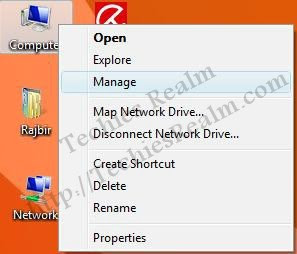


2. Enter the Administrator’s credentials in the UAC prompt.

3. The Computer Management Window will open. Click Disk Management on the left panel.
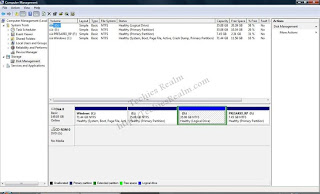


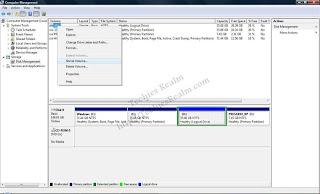
4. Right click on the partition from which you want to create another partition & select ‘Shrink Volume’.


5. Enter the shrink size.
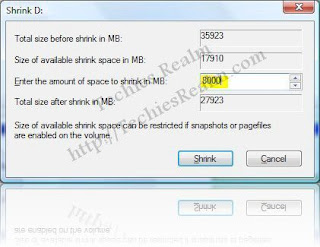


6. The selected drive will be shrinked & free space will now be shown in the Computer Management window. You can create as many partitions as you wish.
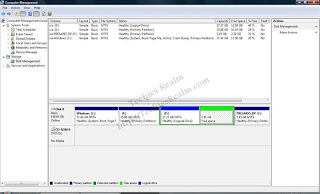


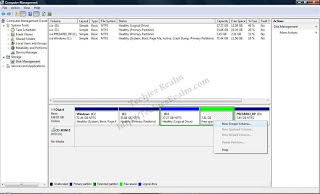
7. Right click the Free Space & select ‘New Simple Volume’.


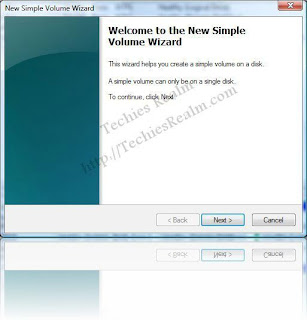
8. The New Simple Volume Wizard will now appear. Click ‘Next’.


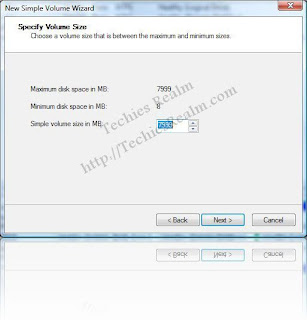
9. In the next window enter the desired partition/volume size, if you want to create multiple partitions & click ‘Next’. If you want a single partition just click ‘Next’.


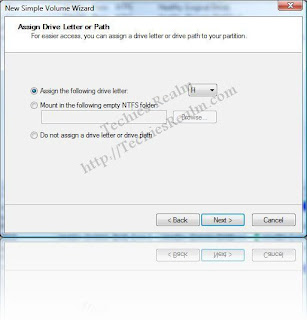
10. In the next window assign the drive letter or, if you are not sure, leave it as it is & click ‘Next’.


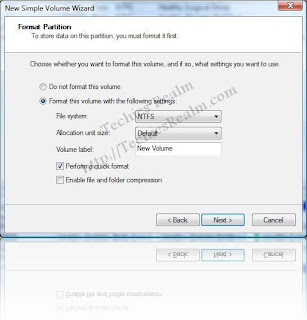
11. Set the file system to FAT32 or NTFS, Enter the label if desired, select ‘Quick Format’, in the next window, and click ‘Next’.


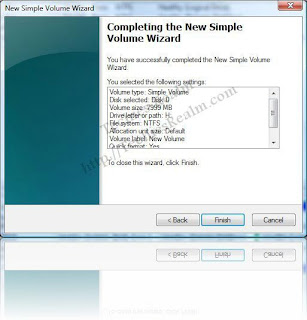
12. Click ‘Finish’ in the next window to finish the New Simple Volume Wizard.


13. The new partition is now created & shown in Computer Management window.
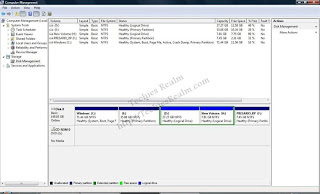


You can now access the new partition in the Computer.

సోర్స్: డిజిట్ ఫోరమ్

ధన్యవాదాలు

IP Messenger - LAN/WAN లో మెసేజెస్ పంపటానికి

LAN లో ఒక సిస్టం నుండి మరొక సిస్టం కు మెసేజ్ పంపటానికి నెట్ లో IP Messenger అనే చిన్న అప్లికేషన్ దొరుకుతుంది, దీనిని http://www.ipmsg.org/index.html.en నుండి Zip ఫైల్ (సైజ్ 103 KB) డౌన్ లోడ్ చేసుకోవచ్చు. అన్ జిప్ చేసిన తర్వాత ipmsg అనే పైల్ ని Copy చేసి Start ---> All Programs ----> Startup లో Paste చెయ్యాలి్,ఇలా చెయ్యటం వలన సిస్టం రీస్టార్ట్ చేసిన ప్రతిసారీ ipmsp Icon సిస్టం ట్రే లో వస్తుంది. ఇదేవిధంగా LAN లోని అన్ని సిస్టం లలో చెయ్యాలి. సిస్టం ట్రే లోని ipmsp Icon పై డబల్ క్లిక్ చేస్తే LAN Users లిస్ట్ వస్తుంది, మెసేజ్ సెలెక్టెడ్ యూజర్ కి కాని, గ్రూప్ కి కాని, లేదా అందరికీ ఒకేసారి పంపవచ్చు.

ఇది LAN లోనే కాదు WAN లో కూడా పనిచేస్తుంది. WAN లో పని చెయ్యాలంటే రిమోట్ సిస్టం IP Address యాడ్ చేసుకోవాలి మరియు ఈ అప్లికేషన్ ఆ సిస్టం లో కూడా వుండాలి.


ధన్యవాదాలు